You’ve probably seen this happen. You build a solid outbound or nurture email for a manufacturing list, include a product image or technical graphic, send it through your ESP, and then the first replies aren’t sales conversations. They’re complaints that the image didn’t load, looked blurry, or landed the message in spam.
That’s not a design problem. It’s a systems problem.
If you want to embed graphic in email reliably, you need to think like an engineer, not just a marketer. The image method you choose affects rendering, inbox placement, load behavior, and trust. In B2B, especially when your recipients sit behind corporate security tools and live in Outlook, the wrong method can undermine an otherwise strong campaign.
When Good Emails Go Bad The Problem with Broken Images
A common failure pattern looks like this. You have good copy, a relevant CTA, and a useful visual like a machine photo, product spec graphic, or process diagram. The email looks fine in your editor. It even looks fine in your own inbox.
Then it reaches the prospect’s environment.
Outlook handles it one way. Gmail handles it another. The corporate filter strips something out. The image host responds slowly. A sales rep opens the email on mobile, sees a blank box, and moves on. An engineer sees a suspicious attachment-style image and hesitates. The campaign underperforms, and nobody on the team can point to one obvious cause.
That’s why image handling matters more in B2B than many teams expect. You’re not just decorating a message. You’re making a deliverability decision.
The business cost is credibility
In manufacturing and technical sales, visuals often carry real meaning. They’re not fluff. They show the product, the part, the application, or the proof. When that visual fails, the email feels unfinished.
Broken graphics don’t just reduce clicks. They make the sender look careless.
That matters when you’re trying to start a conversation with a buyer who already gets too much email and trusts very little of it.
The wrong embed method can cause the failure
The trap is assuming “embedded” always means safer. It doesn’t.
According to Twilio’s breakdown of email image embedding trade-offs, Base64 inline embedding increases email size by 33-37%, which can trigger filters from Microsoft Outlook, and that method can lead to 15-20% higher spam rates compared to linked images. The same source notes that CID embedding can mimic attachments that Gmail flags as suspicious, reducing open rates by up to 12% in high-volume sequences.
That’s the core problem. Every method solves one issue and introduces another.
What this means in practice
When an email image breaks, the root cause usually lives in one of these buckets:
- Client behavior: Outlook, Gmail, and Apple Mail don’t render the same way.
- Security filtering: enterprise inboxes treat images as possible risk vectors.
- Message weight: oversized emails raise friction fast.
- Method mismatch: the embed style doesn’t fit the campaign type or audience.
If your emails support lead generation, reactivation, or sales follow-up, image handling can’t be an afterthought. It needs a deliberate decision, especially when you’re sending to corporate domains.
Diagnosing Why Your Email Graphics Fail to Appear
Most image failures aren’t random. The email client or security layer is doing exactly what it was designed to do.

If you want to diagnose this properly, stop asking, “Why did my image break?” Ask, “What did the receiving environment refuse to trust, fetch, or display?”
Start with the three main failure points
The first is image blocking. Some recipients never see your hosted image because their client or security layer blocks external image fetching by default. That’s especially common in corporate environments.
The second is spam and security scoring. The image method itself can alter how suspicious the message looks.
The third is rendering behavior. Even when the image loads, the client may resize it badly, suppress it, or display it in a way that hurts usability.
Why teams still use graphics anyway
Used well, graphics are worth the effort. Pipedrive’s email image analysis notes that emails with embedded images can increase open rates by up to 25-30% and boost click-through rates by 40-50%. The same source also says linked images are blocked in 60% of corporate filters, while methods like CID render automatically in 80-90% of clients.
That tension defines the whole topic. Graphics can improve engagement, but the wrong delivery method can prevent them from showing up at all.
A practical diagnosis workflow
When a graphic fails, check these in order:
Was the image externally hosted?
If yes, assume some recipients never fetched it. Corporate filters often block external image calls.Was the image embedded with CID?
If yes, inspect how Gmail and webmail clients handled it. CID can behave like an attachment.Was Base64 used?
If yes, review message size and Outlook rendering first. That method often creates more problems than it solves.Did the email rely on the image to carry core meaning?
If yes, your copy structure is fragile. The message should still make sense without the image.Did you test in real client environments?
Previewing inside your ESP isn’t enough.
Practical rule: If the email only works when images load perfectly, the system is brittle.
Think like the receiving inbox
B2B email works better when you design for constraints. Enterprise inboxes care about safety first, appearance second. That’s why image decisions should sit inside your wider deliverability process, not outside it. If you need a stronger foundation before troubleshooting creative assets, this guide to email deliverability best practices is the right place to tighten the system.
Questions to ask before your next send
- Will the email still communicate the offer without the graphic?
- Is the image essential, or is it decorative?
- Does the recipient mostly use Outlook, Gmail, or Apple Mail?
- Are you sending to enterprise domains with aggressive filtering?
- Have you checked load behavior on mobile and desktop?
Teams that ask those questions early usually avoid the most expensive failures later.
Choosing Your Method Hosted vs CID vs Base64
There isn’t one perfect way to embed graphic in email. There are three common methods, and each works best under different constraints.
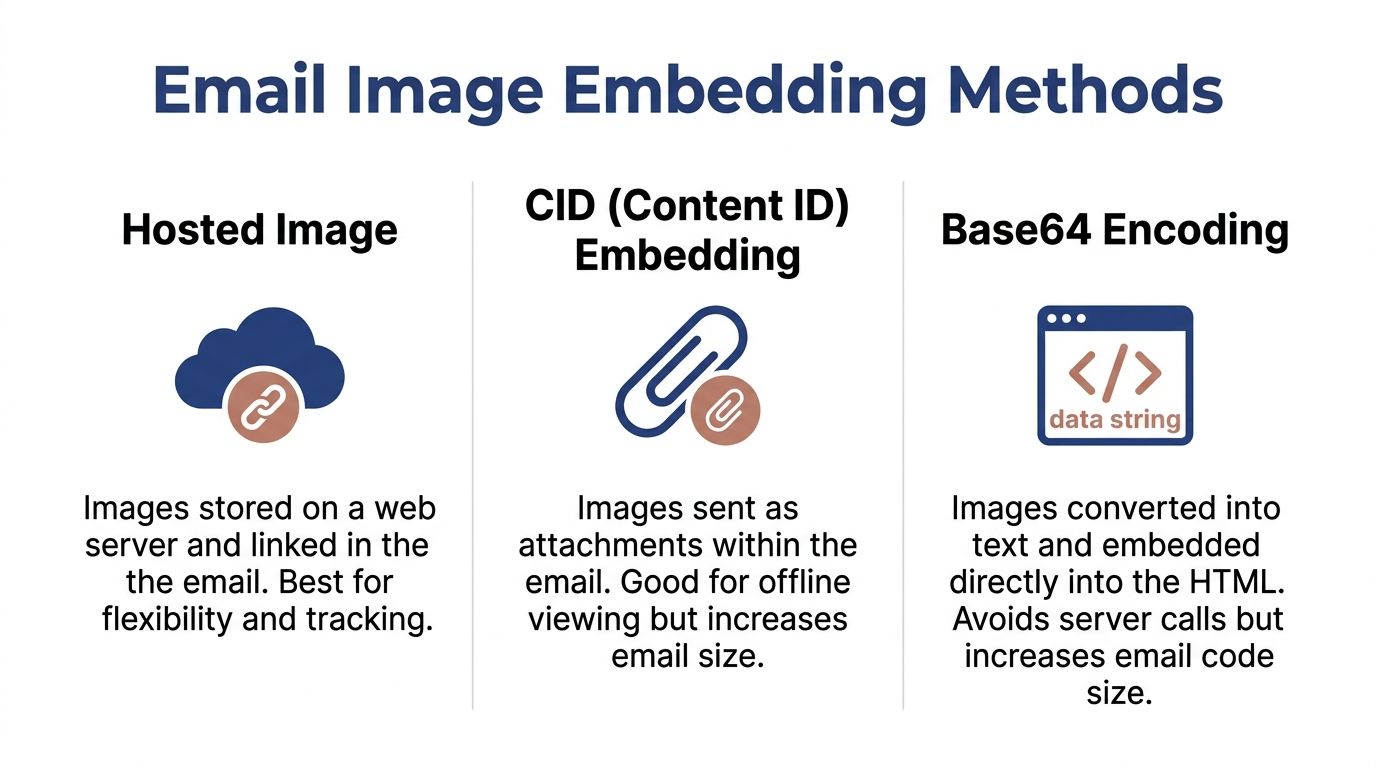
The right choice depends on what you care about most. Inbox placement. Client compatibility. Tracking flexibility. Offline viewing. Ease of use inside the ESP. You can’t maximize all of them at once.
Hosted images
Hosted images use an external URL in the email HTML. The image lives on your server or CDN, and the email calls it when the recipient opens the message.
This is usually the easiest method to manage. It keeps the actual email lighter, makes image swaps easier, and fits normal ESP workflows well. It’s also the cleanest option when you want centralized asset control.
The trade-off is obvious. If the client or security layer blocks remote images, the recipient sees alt text or an empty space.
CID embedding
CID stands for Content-ID. The image is attached within the email and referenced in the HTML.
CID has been around a long time, and it still matters because it can render well in desktop environments where attached inline assets are accepted. Webbula’s history of email image embedding notes that HTML email support started in 1998, CID adoption rose around 2005, and CID reached a 95% render rate in desktop clients. The same source notes that Base64 emerged around 2013, improving load speeds by 30-40% as mobile email opens grew past 55% by 2015.
CID’s weakness is complexity and inconsistent webmail behavior. It can also feel attachment-like, which creates trust issues in some inboxes.
Base64 inline embedding
Base64 converts image data into text and drops it directly into the HTML. No external fetch is required.
That sounds attractive. In reality, it often causes more trouble than it prevents. Email code gets heavy fast. Outlook is especially unfriendly to it. If your audience skews B2B, this usually isn’t your first choice.
If you’re considering Base64 because it seems “self-contained,” test twice before you trust it once.
For a separate perspective on implementation patterns, Robotomail’s guide to embedding images for AI email workflows is a useful read, especially if you’re comparing template automation approaches.
Side-by-side trade-off table
| Method | Best use | Strengths | Common failures |
|---|---|---|---|
| Hosted | Most newsletters, campaigns, automated nurture emails | Easier to manage, lighter message weight, flexible asset updates | External blocking, broken URLs, slow host response |
| CID | Some B2B desktop-heavy sends where inline display matters | Strong desktop rendering, self-contained asset reference | Webmail inconsistency, attachment-like behavior |
| Base64 | Narrow use cases with careful client targeting | No external image request | Heavy HTML, poor Outlook behavior, higher filter risk |
The decision framework we use
If your audience lives in corporate inboxes, hosted images are usually the baseline. They’re simpler to maintain and less likely to create attachment-style suspicion. CID is worth testing when you know desktop rendering is the bigger priority and your client mix supports it. Base64 is the method we treat with the most caution.
A good decision comes down to these questions:
- Do you need the image to remain editable after send? Hosted wins.
- Do recipients work mainly in desktop Outlook? CID may deserve a test.
- Are you trying to avoid external fetches at all cost? Base64 may look tempting, but the downside is real.
- Is this a high-volume B2B sequence? Keep the method conservative.
What usually works best
For most B2B lead gen systems, a clean hosted-image build with strong alt text and balanced copy is the most stable starting point. It isn’t perfect. It is manageable, testable, and easier to troubleshoot when something goes wrong.
How to Embed Images in Your ESP with a GoHighLevel Example
Theory helps. Execution is what gets campaigns out the door.

Inside most ESPs, including GoHighLevel, the practical answer is simple. Use hosted images for the bulk of your campaigns unless you have a specific reason to build otherwise. That gives you cleaner asset management and fewer surprises for non-technical users.
A straightforward hosted image workflow
This method serves as a recommended starting point for implementation.
Prepare the image
Resize it for the space it will occupy. Don’t upload a huge original and hope the email client fixes it for you.Upload it to a stable location
Use the ESP file manager or a reliable HTTPS host/CDN.Insert the image in the email builder
Most ESP drag-and-drop editors will generate the right image block for standard use.Set alt text immediately
Don’t leave this until the end. It’s part of the build, not a nice extra.Check mobile preview and desktop preview
Email builders can mislead you if you only review one viewport.
A simple HTML example
If you’re editing HTML directly, the pattern is usually as simple as this:
<img src="https://yourdomain.com/images/product-demo.jpg" width="600" alt="CNC machine product demo" style="max-width:100%;height:auto;">
That keeps the asset externally hosted and gives the client a clear path to fetch it.
A GoHighLevel example
In GoHighLevel, the usual path is:
- Open the email builder inside your campaign or workflow.
- Drag in an image block.
- Upload the image or select it from your media library.
- Set the alt text.
- Adjust width and alignment in the editor.
- Send test emails to real inboxes before going live.
This matters more when your email is part of a larger lead pipeline. If the image sits inside a nurture sequence, quote follow-up, or reactivation flow, it should support the funnel, not become the weak link. That’s the same principle behind a solid inbound marketing funnel build. Every part needs to work under real conditions, not just inside the builder.
When you’d consider CID in an ESP
Some teams move beyond the visual builder and use custom-coded templates for tighter control. That’s where CID sometimes enters the picture.
Use it sparingly. It’s better suited to specialist implementations where you know the recipient environment and can test thoroughly. For most standard campaign work in GoHighLevel, the operational overhead usually outweighs the benefit.
A quick walkthrough helps if you want to see this in motion:
A few implementation rules worth keeping
- Name assets clearly: “pump-diagram-v2.png” beats “final-final-3.png”.
- Match the image to the message: product visuals, diagrams, and UI screenshots usually outperform generic decorative art.
- Keep text out of the image when possible: if the image fails, that text disappears too.
- Use buttons for key actions: don’t rely on a clickable image alone.
The best email image setup is the one your team can repeat consistently without breaking deliverability.
That’s why simple workflows usually beat clever ones.
Optimizing Images for Performance and Accessibility
Getting the image into the email is only half the job. If the asset is too heavy, poorly sized, or unreadable when blocked, the campaign still underperforms.
At this stage, many teams lose the gains they expected from using visuals. They focus on placement and forget performance.
The baseline rules that matter
Litmus guidance on image-heavy email performance recommends an 80:20 text-to-image ratio, keeping images under 50KB, using absolute URLs for hosted images, and applying inline CSS for responsiveness. The same source notes that including alt text can boost ROI by 15-20% through better accessibility compliance.
Those aren’t cosmetic details. They affect rendering, readability, and whether the message still works when images are blocked.
File type and weight choices
Use the file type that matches the job.
- JPEG: usually better for photos and real-world product imagery.
- PNG: useful for logos, screenshots, and graphics that need crisp edges.
- GIF: use carefully. Movement can help, but file weight becomes a problem quickly.
If you also send attachments alongside image-based emails, file-size discipline matters even more. This overview of reliable email attachment guidance is helpful when you’re trying to keep the full message lean.
Accessibility is not optional
Alt text does two jobs. It tells the reader what should be there when the image doesn’t load, and it improves access for screen-reader users.
Weak alt text looks like this:
- Bad: “image”
- Bad: “banner”
- Bad: “promo”
Better alt text describes the role of the image in plain language:
- Better: “Stainless steel conveyor system for food processing line”
- Better: “Exploded view of pump assembly with replacement parts highlighted”
Field note: If the image disappeared completely, would your alt text still help the reader understand the offer?
That’s the standard.
Keep the email useful without the image
This is where marketers often trip up. They build a beautiful hero block and place the main value proposition inside the image itself.
Don’t do that. Put the important message in live HTML text. Let the image reinforce the point, not carry it alone.
A stronger operating pattern looks like this:
- Headline in text: clear problem or offer
- Supporting copy in text: short explanation
- Image: product, diagram, proof, or context
- CTA button in text/HTML: always visible even if the image fails
If you’re tightening campaign structure more broadly, these email campaign best practices pair well with image optimization work.
A short optimization checklist
| Check | Good practice |
|---|---|
| Weight | Keep the image light and compressed |
| Format | Match JPEG, PNG, or GIF to the actual content |
| Responsiveness | Use CSS that scales cleanly on smaller screens |
| Alt text | Describe the function or content clearly |
| Message design | Keep core claims and CTA outside the image |
Performance and accessibility aren’t separate disciplines here. They support the same outcome. A message that loads fast, reads clearly, and still works under client restrictions.
Troubleshooting and Testing Your Embedded Graphics
Testing is where professional email work separates from hopeful email work.
If you send first and diagnose later, you’ll learn from production failures. That’s expensive. A better approach is a pre-send QA pass that checks rendering, clarity, and spam risk before the message reaches your list.
The biggest complaint is blurry images
A recurring B2B issue is image quality, especially in Outlook. This analysis of pixelated embedded images in email clients notes that clients like Outlook can auto-resize visuals and reduce effective DPI. The same source says using 2x source images, such as 1200px for a 600px container, with CSS can help, and references a 22% engagement drop from blurry embeds. It also points to hybrid text+SVG approaches as one way to solve sharpness problems.
That’s a useful reminder. An image can “load successfully” and still fail the campaign if it looks soft, distorted, or unreadable.
A practical pre-flight checklist
Before sending, run through this list:
- Check real inboxes: send tests to Outlook, Gmail, and Apple Mail if those are relevant to your audience.
- Check blocked-image behavior: confirm the email still makes sense when the graphic doesn’t display.
- Check sharpness: inspect logos, diagrams, and text overlays on desktop and mobile.
- Check spam placement: if the message lands in junk during testing, stop and diagnose before scaling.
- Check link behavior: make sure clicks go to the intended page and not through broken redirects.
- Check dark mode and contrast: some designs break badly when client display settings change.
What to fix when something breaks
If the image is blurry, start with source dimensions. Use a higher-resolution source for the display container and let CSS scale it down.
If the image doesn’t load, check whether you used a hosted asset and whether the host is stable and accessible from the target environment.
If Outlook behaves differently than Gmail, assume the issue is client-specific until proven otherwise. Rebuild the block more simply before adding complexity.
Don’t troubleshoot the whole email at once. Isolate the image method, the asset, and the client. Then test one variable at a time.
When to change the method entirely
Sometimes the right fix isn’t “optimize the image.” It’s “stop using this embedding method for this audience.”
That’s especially true when:
- Your list is mostly enterprise recipients
- Your emails are part of a high-volume outbound sequence
- Your visuals contain technical detail that must stay crisp
- Your team can’t support custom-coded exceptions at scale
In those cases, the simplest stable build often wins. Clean hosted images. Strong alt text. Live HTML copy. Careful testing. Conservative design.
That approach won’t feel flashy. It will keep more campaigns working.
If your team is fighting broken email graphics, inconsistent deliverability, or GoHighLevel email issues that keep hurting lead gen, Machine Marketing can help you diagnose the system and fix the underlying workflow. We work with B2B companies, including manufacturers, to build email and CRM setups that are practical, testable, and built for real inbox conditions.