A visitor submits a form, waits for the confirmation link, and nothing arrives. Support forwards the issue to marketing, marketing checks the automation, and everyone starts guessing. The fastest way out is to stop treating “no confirmation email” as one problem and identify where the message failed: it may never have been generated, rejected during SMTP transmission, accepted and routed to spam, or filtered after acceptance.
That distinction matters for manufacturers and industrial service providers. A missing signup confirmation can block a lead from entering an active list, interrupt onboarding, or prevent a buyer from receiving an order or shipping update. We'll use a practical diagnosis process that separates user checks from CRM audits, sending-system logs, authentication, and ongoing monitoring.
Table of Contents
- Quick User Checks Before Technical Troubleshooting
- Understanding Where Emails Fail in the Delivery Chain
- Auditing Your CRM and Automation Workflows
- Debugging SMTP and Transactional Email Systems
- Fixing SPF, DKIM, and DMARC Authentication
- Building Monitoring and Prevention Systems
Quick User Checks Before Technical Troubleshooting
Start with the recipient, not the server. A surprising number of missing confirmation emails are present but misplaced, sent to a mistyped address, or blocked by a workflow setting that support teams haven't verified. Major email-platform guidance recommends checking spam and promotions folders, using an @customdomain sender rather than a freemail address, and confirming that the confirmation-email setting is enabled. Kit's troubleshooting guidance for confirmation emails is a useful reference for this first pass.
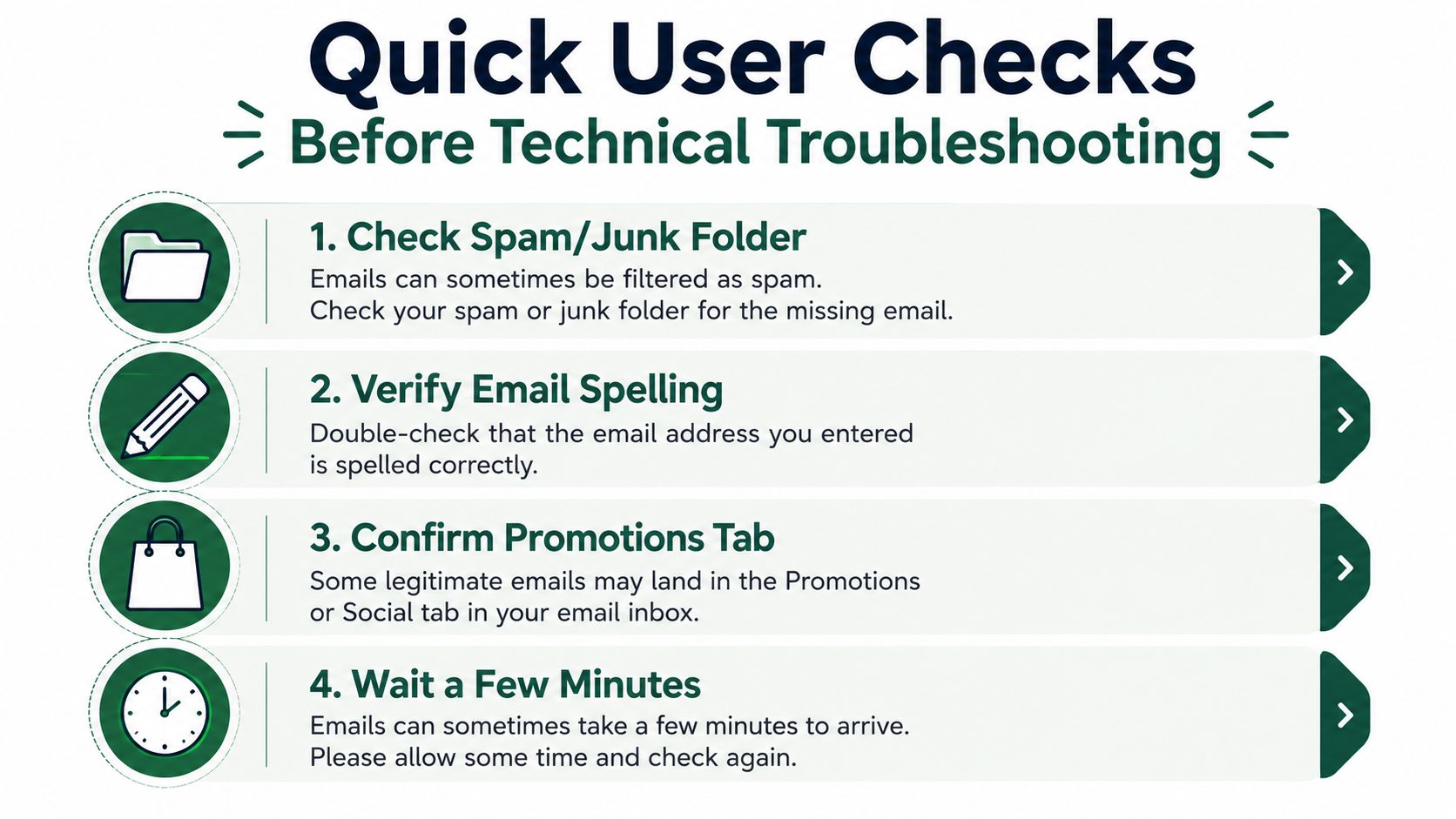
Ask the user to complete these checks in order:
- Search every likely folder. Have them inspect Spam, Junk, Promotions, Updates, quarantine, and any company mail-security portal. If they use Outlook, Gmail, or another provider, this resource on checking spam mail across email clients gives clear client-specific directions.
- Verify the submitted address. Compare the form submission with the address in the CRM. Look for a missing character, an extra space, a swapped domain, or an old business mailbox. Don't assume the address in the support ticket is the address the visitor entered.
- Confirm the sender identity. A confirmation sent from a freemail address can face stricter filtering and may look inconsistent with a manufacturer's brand. Use a properly configured company domain where the platform supports it.
- Check timing without promising delivery. Ask the user to refresh the mailbox and search for the subject, sender, or domain. A short delay can occur, but repeated reports require a system diagnosis rather than repeated resends.
Support should request a screenshot of the form confirmation page, the recipient address with sensitive details obscured, the mailbox search results, and any bounce or quarantine notice. Those details help determine whether the user completed the form, whether the address was correct, and whether the mailbox provider saw a message.
Support response template: “Thanks for letting us know. Please check your Spam, Junk, Promotions, and Updates folders, then search for our sending domain. Also confirm that the email address entered on the form is correct. If the message still isn't visible, reply with the approximate submission time and a screenshot of any delivery or quarantine notice, with personal information covered, and we'll trace the message.”
If the user passes these checks, stop asking them to search again. Move to the delivery chain and find the first stage where evidence disappears. For broader context on message categories, review the different types of email before deciding whether the issue affects marketing, transactional, or account-verification messages.
Understanding Where Emails Fail in the Delivery Chain
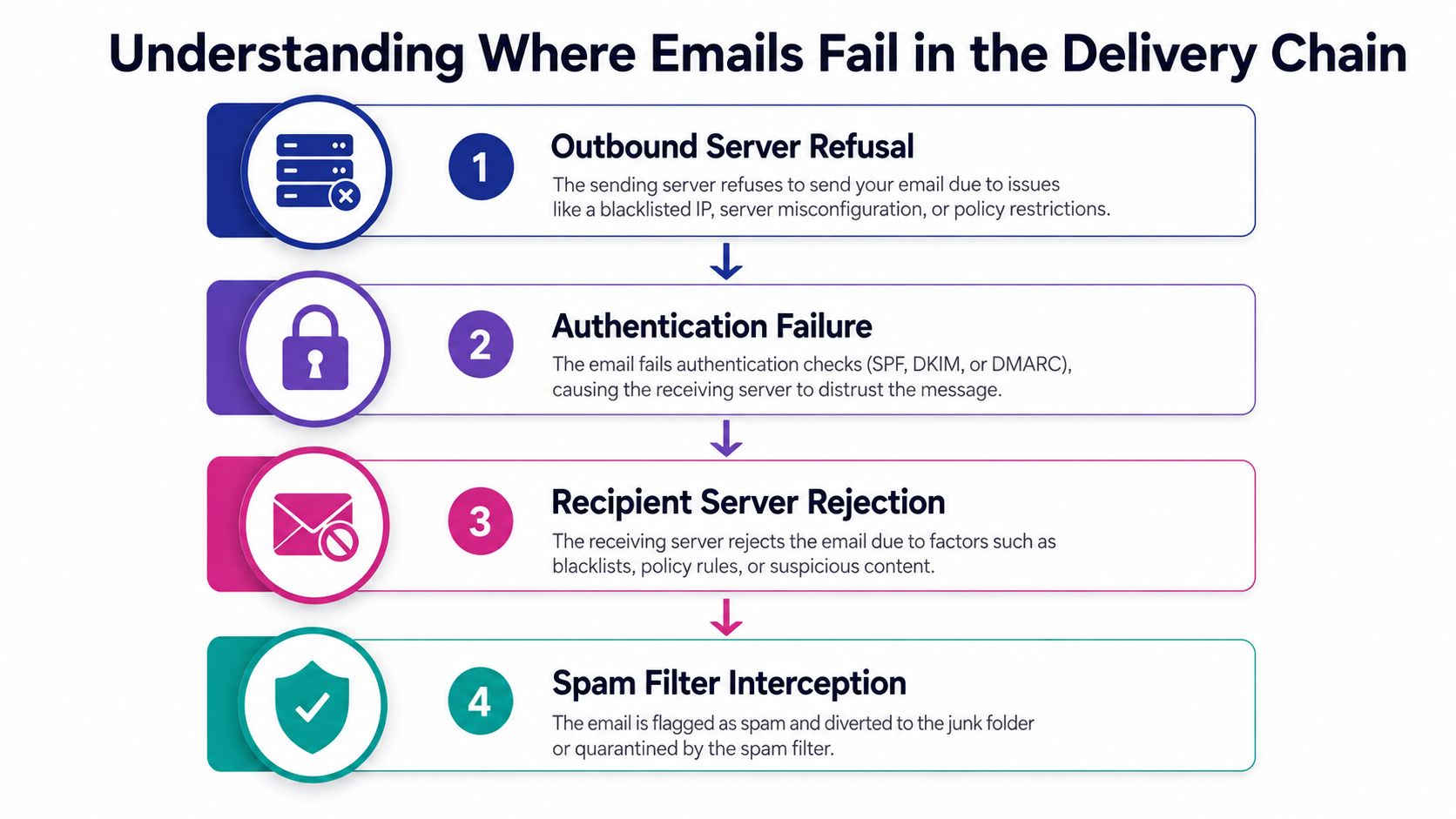
Email delivery has four practical failure points. Treating them as separate stages gives your team a clean routing rule: automation owners investigate generation, IT or the email provider investigates transmission and acceptance, and deliverability specialists investigate inbox placement.
The four checkpoints
Message generation happens inside the form, CRM, or application. If the trigger didn't fire, the contact was suppressed, or the template wasn't published, no outbound message exists. There won't be an SMTP rejection because the system never attempted to send.
SMTP transmission begins when the sending service connects to the recipient's mail server. Connection timeouts, authentication errors, throttling, and sender-policy failures appear in application or provider logs. These are transmission problems, not inbox-placement problems.
Recipient acceptance occurs when the destination server returns an acceptance response. A hard bounce usually indicates a permanent issue such as an invalid mailbox or blocked sender. A soft bounce can reflect a temporary condition, including throttling or a full mailbox. Preserve the exact response instead of reducing it to “email failed.”
Inbox placement starts after acceptance. The message may land in spam, quarantine, Promotions, or another filtered location. A DMARC policy set to quarantine sends mail that fails both DKIM and SPF authentication to spam or junk, as explained in NCSC guidance on marking spoof emails as spam. Acceptance therefore doesn't guarantee visibility.
A fast triage flow
Use this sequence during an incident:
- No event in the application log: inspect the form trigger, workflow enrollment, suppression status, and template assignment.
- Send event exists with an SMTP error: classify the response as authentication, connection, policy, throttling, or recipient rejection.
- Accepted by the recipient server but unseen: check spam, quarantine, filtering rules, and inbox-placement signals.
- No bounce and no visible message: investigate silent filtering and provider logs. One deliverability source reports that 6.4% of emails can disappear without bounce or delivery confirmation, so the absence of an error isn't proof of delivery. OpenSends's deliverability statistics provide context for this failure mode.
Benchmarks help identify whether you're facing an isolated address problem or a systemic one. Healthy marketing-email bounce rates are generally under 2%, while more than 5% is considered critical. The same benchmark summary cites Selzy's 2024 industry figure at 1.98% and a separate 2025 analysis at 10.68% across all industries, so compare your own results with caution and keep message type, audience, and provider mix in view. The email bounce-rate benchmark explains these comparisons.
For Outlook-specific filtering questions, Finchum Fixes IT's guide to stopping spam emails in Outlook can help support teams understand the recipient-side checks without confusing them with sender-side diagnosis.
Auditing Your CRM and Automation Workflows
When the user-side checks pass, inspect the workflow before changing DNS or blaming the mailbox provider. A confirmation email depends on a chain of conditions: the form must create or update the contact, the contact must qualify for enrollment, the workflow must be active, and the email action must be available to send.
Open the automation's execution history and inspect a real submission. You're looking for an enrollment event, a branch decision, an email action, and a final send status. If the contact appears in the CRM but has no enrollment event, the trigger is wrong or the form is writing to a different list, pipeline, audience, or contact record.
Workflow audit checklist
- Trigger conditions: Confirm that the workflow listens to the exact form, landing page, tag, list, or custom field used by the current signup.
- Activation state: Check that the automation is published and active in the production environment. Draft workflows and test-only versions won't send to live contacts.
- Template assignment: Verify that the confirmation template is published, connected to the correct action, and not missing a required verification URL.
- Contact properties: Check field mapping for email address, consent status, country, lifecycle stage, and any routing fields used by branches.
- Suppression rules: Review unsubscribed, bounced, blocked, duplicate, and manually suppressed statuses. A valid form submission can still be prevented from sending.
- Branch exits: Inspect every conditional path. A missing value can send the contact down a no-action branch without producing an obvious error.
- Frequency controls: Confirm that re-enrollment, cooldown, and duplicate-submission rules aren't preventing a second test.
Use a controlled test address rather than creating fake leads. Submit the form with a mailbox you own, capture the timestamp, and follow the record through the CRM, automation history, sending provider, and destination mailbox. If your platform supports preview or test mode, use it to validate template rendering, but don't treat a preview as proof that the production trigger works.
Manufacturers often have separate paths for quote requests, distributor inquiries, service tickets, and technical downloads. Test each path independently. A working newsletter workflow tells you very little about a confirmation action attached to a quote form.
Debugging SMTP and Transactional Email Systems
Once the workflow shows a send attempt, examine the transactional email layer. This may be a built-in platform sender, an SMTP relay, or an API provider such as SendGrid, Postmark, Mailgun, Amazon SES, or a CRM's connected delivery service. The key question is not “did the application send?” but “what response did the sending system receive?”
Read the event trail
Export the event for a failed recipient and record:
- the message or event identifier
- the creation timestamp
- the sender domain and address
- the recipient domain
- the delivery status
- the SMTP response text
- the provider's suppression or bounce classification
- any spam, complaint, or policy signal
A connection timeout points to transport or network conditions. An authentication failure points to credentials or sender configuration. A 4xx response generally indicates a temporary condition that may be retried, while a 5xx response generally indicates a permanent rejection or policy failure. The exact response text matters more than the broad label.
Don't delete failed events after a resend. Preserve the original record, the retry event, and the eventual result. This lets you distinguish a provider-specific problem from a bad address pattern, such as failures concentrated at one corporate domain.
Test with controlled recipients
Create seed accounts at Gmail, Outlook, and a company mailbox that uses the same provider as your customers. Submit the same form through the normal production path. Then compare:
- whether each provider accepted the message
- whether the message reached the inbox or spam folder
- whether headers show the expected sender and authentication results
- whether the provider delayed, throttled, or rejected the send
- whether your sending service recorded a delivery event
Don't test only with your own domain. A message can appear healthy internally while facing filtering at a major consumer or business provider.
Log rule: Preserve the complete SMTP response and provider event ID before changing configuration. A fix without a before-state makes recurring failures harder to prove.
Check blacklists through a reputable monitoring service, but don't assume a clean blacklist result clears your sender reputation. Reputation also reflects complaints, engagement, sending patterns, and provider-specific behavior. Use the email marketing platforms comparison when reviewing whether your current platform provides the event logs, suppression controls, and transactional reporting your team needs.
Fixing SPF, DKIM, and DMARC Authentication
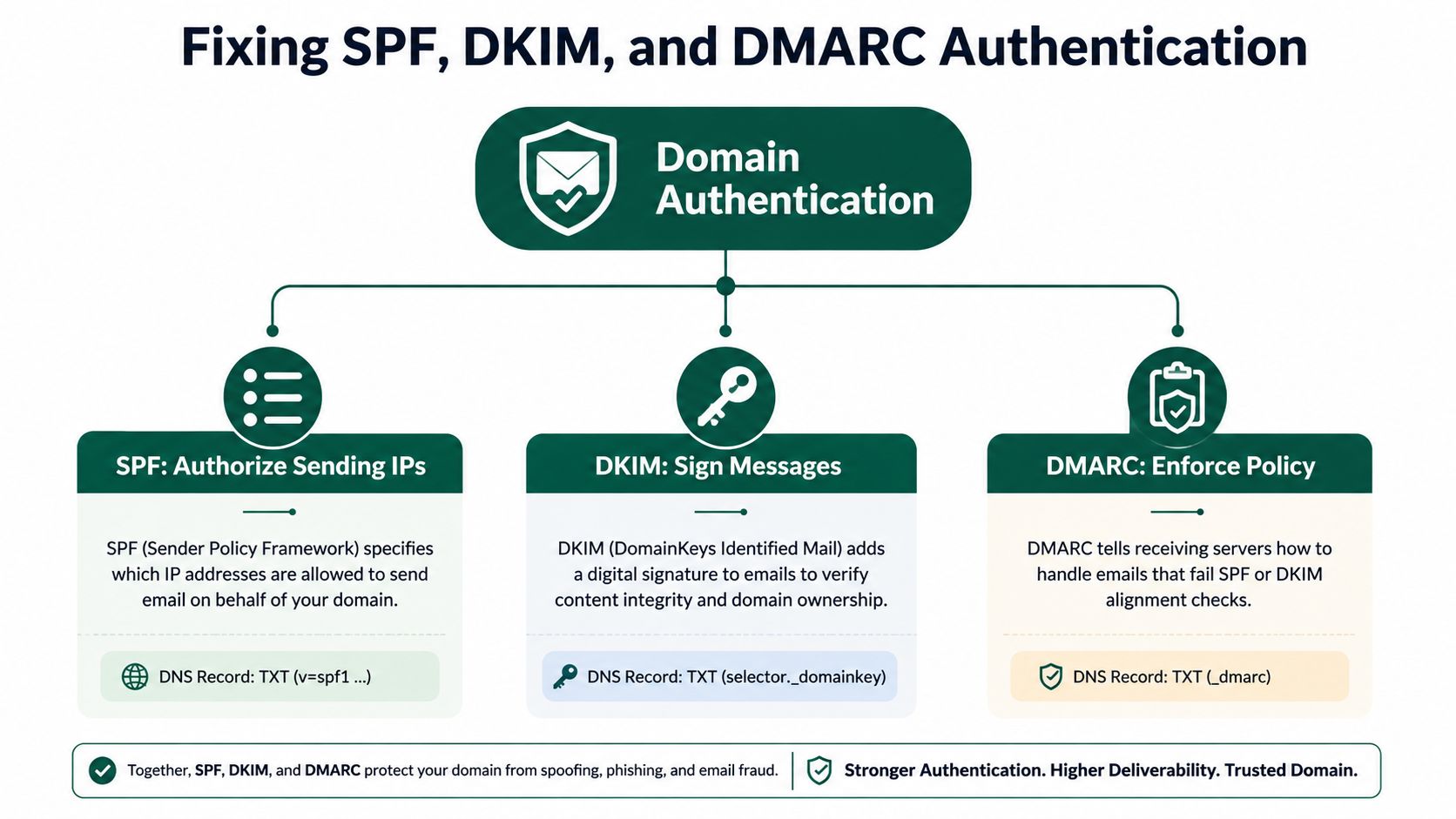
Authentication is a required foundation, but it isn't a complete deliverability strategy. Configure the three controls deliberately, document which platform sends which message, and verify the results in actual message headers.
SPF authorizes senders
SPF publishes the services permitted to send on behalf of your domain. Build one consolidated SPF policy that includes every legitimate sender, such as your CRM, transactional provider, and support platform. Don't publish multiple SPF records, and don't keep obsolete services authorized after you stop using them.
SPF has lookup constraints, so adding vendors casually can create a record that fails evaluation. Ask whoever manages DNS to review the complete authorization chain, remove unused includes, and confirm that the envelope-from domain matches the service's configuration.
DKIM signs the message
DKIM adds a cryptographic signature to outgoing mail. Your provider usually generates the key pair and gives you a selector and DNS value to publish. Keep a selector inventory for each sending platform, rotate keys according to the provider's policy, and verify that the visible From domain aligns with the authenticated signing domain.
A DKIM pass in a header confirms that the signature validated. It doesn't prove the message reached the inbox, so compare the result with the provider's delivery and placement events.
DMARC defines the response
DMARC checks alignment between the visible From domain and SPF or DKIM authentication. Start with a monitoring policy while you identify legitimate senders, then move toward enforcement after reviewing aggregate and forensic reporting. A quarantine policy can route messages that fail both SPF and DKIM to spam or junk, which is why a misconfigured new sender can look like a missing confirmation email rather than an obvious rejection.
Use a DNS inspection tool and a real test message to verify:
- SPF exists as one complete policy
- DKIM passes for every active sending service
- DMARC exists at the correct organizational domain
- the visible From domain aligns with SPF or DKIM
- reports reach a monitored mailbox
- old vendors are removed from authorization
- subdomains used for transactional mail have their own documented setup
Authentication can pass while messages still land in spam. Independent 2026 reporting found that fully authenticated mail still lands in spam more than 30% of the time, while another corpus-level report placed global inbox placement around 66%. The deliverability report from Unspam explains why authentication, reputation, engagement, and provider filtering must be diagnosed together.
For a deeper operational checklist, use email deliverability best practices and validate every change with seed accounts rather than relying on a DNS checker alone.
Building Monitoring and Prevention Systems
A one-time repair won't protect the next quote request or password reset. Build a monitoring system that catches failures before sales staff discover them through an angry customer. For industrial businesses, the most useful dashboard connects form submissions, CRM enrollment, send attempts, accepted messages, bounces, complaints, and confirmed clicks.
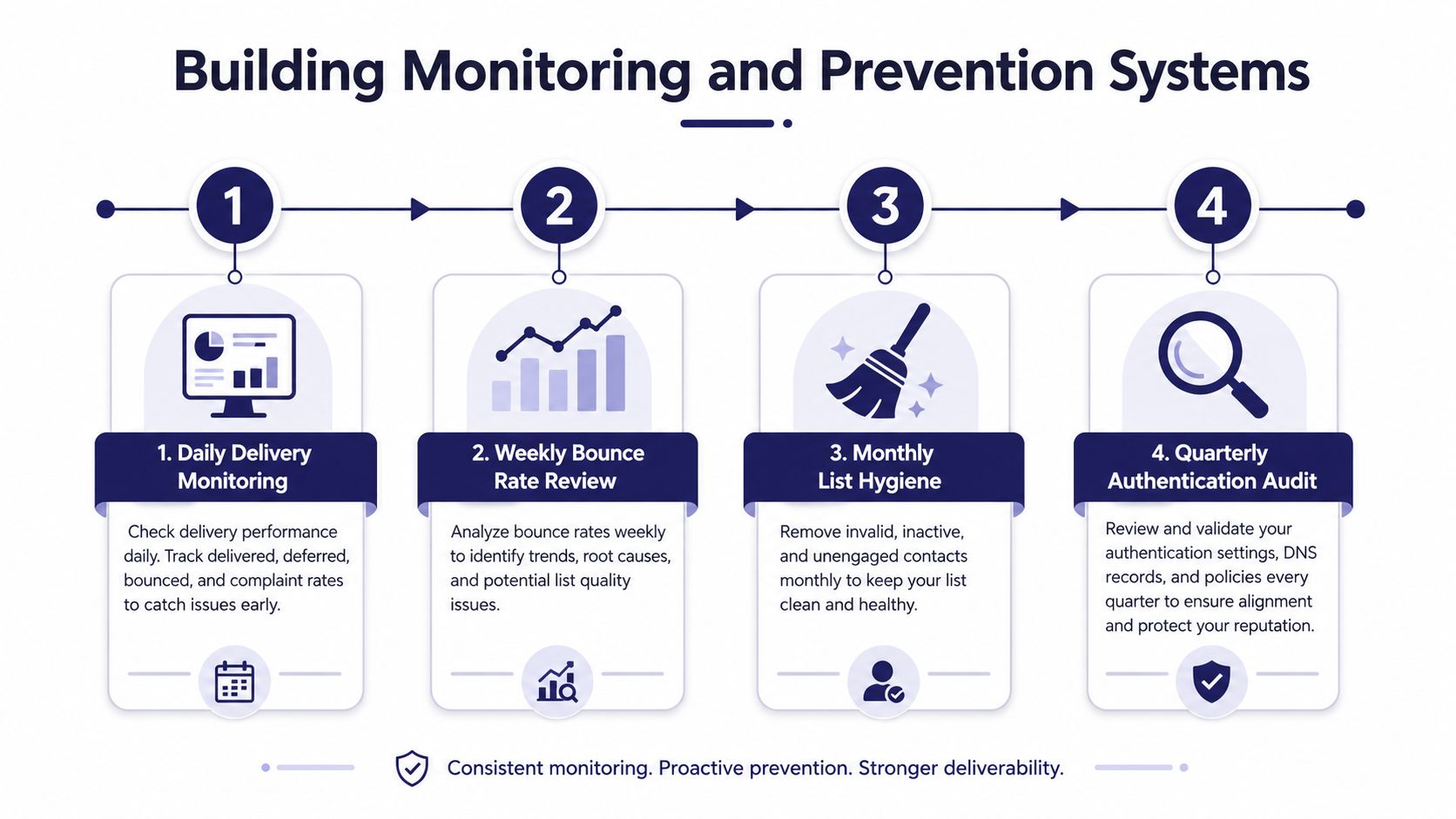
Build the operating rhythm
Daily monitoring should cover transactional send failures, provider outages, suppression events, and sudden changes in confirmation volume. Alert when the number of form submissions and the number of confirmation send attempts diverge.
Weekly review should compare bounce and complaint behavior by provider, domain, form, and message type. A bounce rate above 2% is a warning sign, and a source on verification best practices recommends keeping Gmail spam complaints under 0.3%. Prospeo's email-verification guidance connects these controls with list quality and sending discipline.
Monthly hygiene should remove or quarantine invalid, bounced, and persistently unconfirmed addresses. Validate new addresses in real time before they enter the CRM, batch-verify older lists before major sends, and re-check records that haven't engaged. The same guidance reports that only 62% of submitted addresses were valid in one large verification dataset, that lists decay by about 23% each year, and that catch-all addresses are 27 times more likely to bounce than standard verified addresses. Those figures support a practical policy: unknown and catch-all results shouldn't receive full-volume sending until they're confirmed.
Quarterly authentication audits should inventory every platform that sends from your domain, review SPF, DKIM, and DMARC alignment, inspect provider reports, and test representative workflows. Don't limit this review to marketing. Quote acknowledgments, service notifications, account invitations, and shipment updates often carry higher operational risk than newsletters.
Create an escalation SOP
Write a one-page procedure with named owners:
- Support captures the recipient address, submission time, provider, and screenshots.
- Marketing operations checks workflow enrollment, suppression, template status, and send events.
- IT or the email administrator reviews SMTP responses, authentication, DNS, and provider policy notices.
- Leadership decides whether to pause a campaign, switch to a backup notification channel, or contact affected customers directly.
Double opt-in deserves a separate business decision. It requires the visitor to submit an address, receive a confirmation message, click the verification link, and only then enter the active list. The double opt-in process shows why a missing email blocks activation, while single opt-in removes that confirmation step but gives you less proof that the address belongs to the person who submitted it.
Provider enforcement also changes the risk calculation. Multiple 2026 sources report that Gmail began actively rejecting non-compliant senders in late 2025, with Microsoft-style enforcement tightening as well. Treat rejection notices as evidence to classify, not as a reason to keep resending the same message.
For unconfirmed subscribers, use a controlled reminder with a clear subject, the original signup context, and a support alternative. Don't send repeated reminders indefinitely. Quarantine records that remain unconfirmed, preserve consent evidence, and investigate whether the failure is user error, filtering, or a broken workflow.
Machine Marketing helps manufacturers connect CRM, automation, deliverability, and lead-generation systems so missing confirmation emails can be diagnosed at the correct failure point. Visit Machine Marketing to discuss a practical audit of your forms, workflows, sending configuration, and monitoring SOP.